
Settings
The Settings tab is a top-level tab in the Dino Discounts admin, sitting between Coupons and Countries & Zones. It contains controls that affect how the entire discount engine behaves — these are global and apply across all discounts.
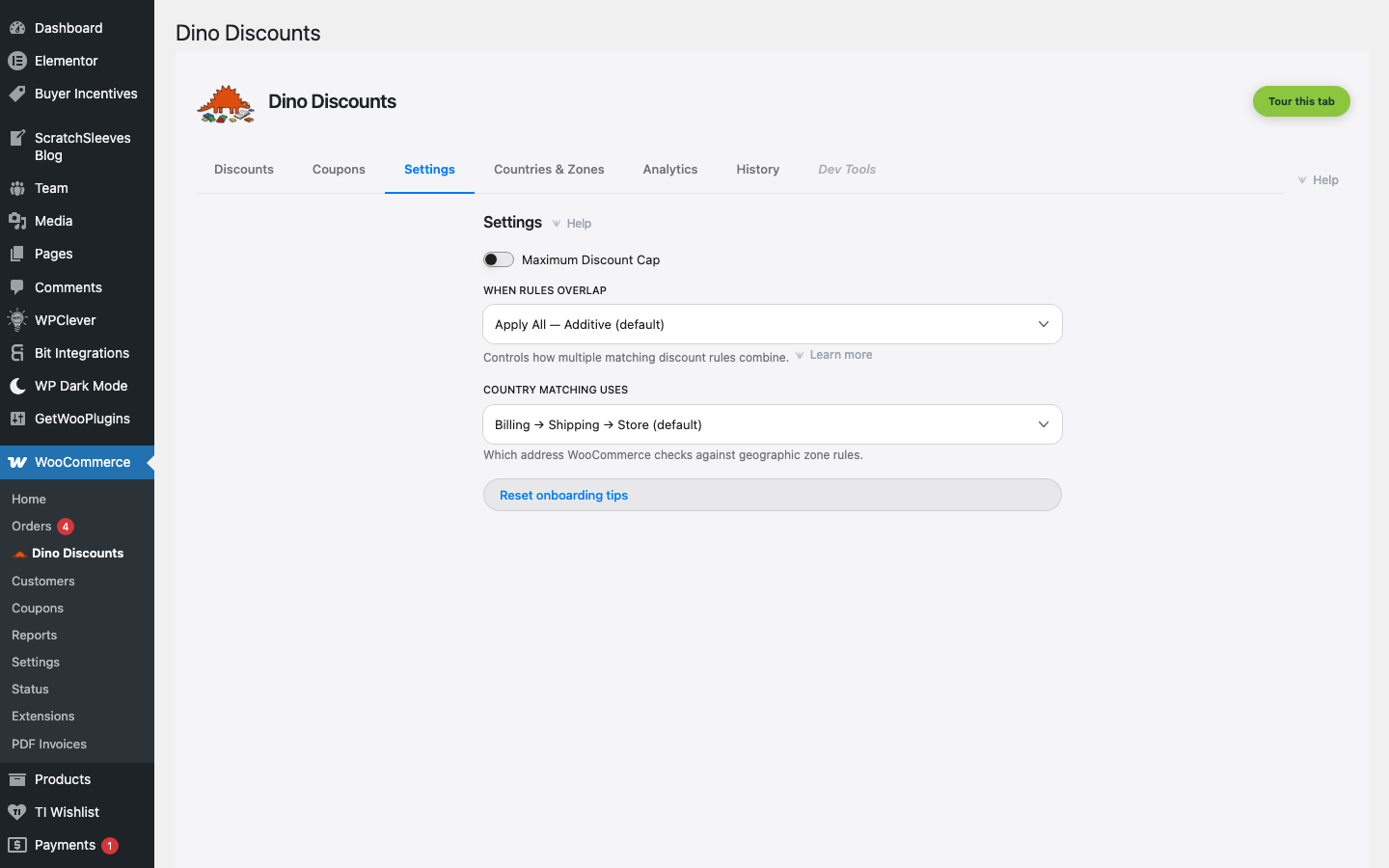
Available settings
Section titled “Available settings”Maximum Discount Cap
Section titled “Maximum Discount Cap”A safety ceiling on the total discount any cart can receive, expressed as a percentage of the cart subtotal at full price.
| Setting | Description | |---------|-------------| | Enable/disable | Toggle the cap on or off | | Maximum % | The ceiling — e.g. 40% means no cart can receive more than 40% total discount |
When to use: As a safety net against unexpected discount combinations. If you have multiple team members creating discounts, or complex stacking, the cap ensures no customer gets an unreasonable discount.
WooCommerce coupon interaction
Section titled “WooCommerce coupon interaction”Controls how the Dino Discounts engine behaves when a real WooCommerce coupon is also on the cart. The control lives on the Settings tab and writes to the global wc_coupon_kill_switch option.
| Mode | Behaviour |
|------|-----------|
| Apply Dino discounts alongside (default, off) | Dino automatic discounts and WooCommerce coupons both apply to the cart |
| Disable all Dino discounts when any coupon is applied (disable_dino_when_wc_coupon_applied) | As soon as any real WooCommerce coupon is present, every Dino rule is suppressed for that cart |
When to enable the kill-switch: If you run separate coupon promotions (e.g., via marketing emails) and don't want them to stack with your automatic discounts. This prevents "double dipping."
Discount Combination (Stacking Mode)
Section titled “Discount Combination (Stacking Mode)”Controls how multiple matching discounts combine. See Discount Priority & Stacking for detailed explanations of each mode:
- Apply All — Additive (default)
- Best Discount Only
- First Match
- Disable All
Performance Tracking
Section titled “Performance Tracking”When enabled, writes timing and cache data as a hidden HTML comment in the page footer. Useful for verifying the engine's performance impact on your store.
See Performance Monitoring for details on what's tracked and how to read the data.
Automatic conflict detection
Section titled “Automatic conflict detection”Dino Discounts automatically detects two types of potential conflicts and shows admin notices:
Incompatible discount plugins
Section titled “Incompatible discount plugins”If any of these plugins are active alongside Dino Discounts, a warning banner appears advising you to deactivate them or verify your discount rules:
- WooCommerce Dynamic Pricing & Discounts
- Discount Rules for WooCommerce
- YITH Dynamic Pricing and Discounts (Premium)
- Smart Coupons for WooCommerce
Running multiple discount plugins can cause unexpected pricing — prices may be discounted twice or rules may conflict.
Caching plugins
Section titled “Caching plugins”If a full-page caching plugin is detected (WP Rocket, LiteSpeed Cache, W3 Total Cache, WP Super Cache, and others), a one-time notice reminds you to exclude /cart/ and /checkout/ from page caching. Caching these pages can cause discounts to appear stale or not apply.
This notice can be permanently dismissed — it won't reappear once you click the dismiss button.