
Your First Automatic Discount
This walkthrough creates a simple "Spend £50, get 10% off" tiered discount. By the end, your store will automatically apply the discount to any cart that hits the threshold — no coupon code needed.
Step by step
Section titled “Step by step”Open the recipe gallery
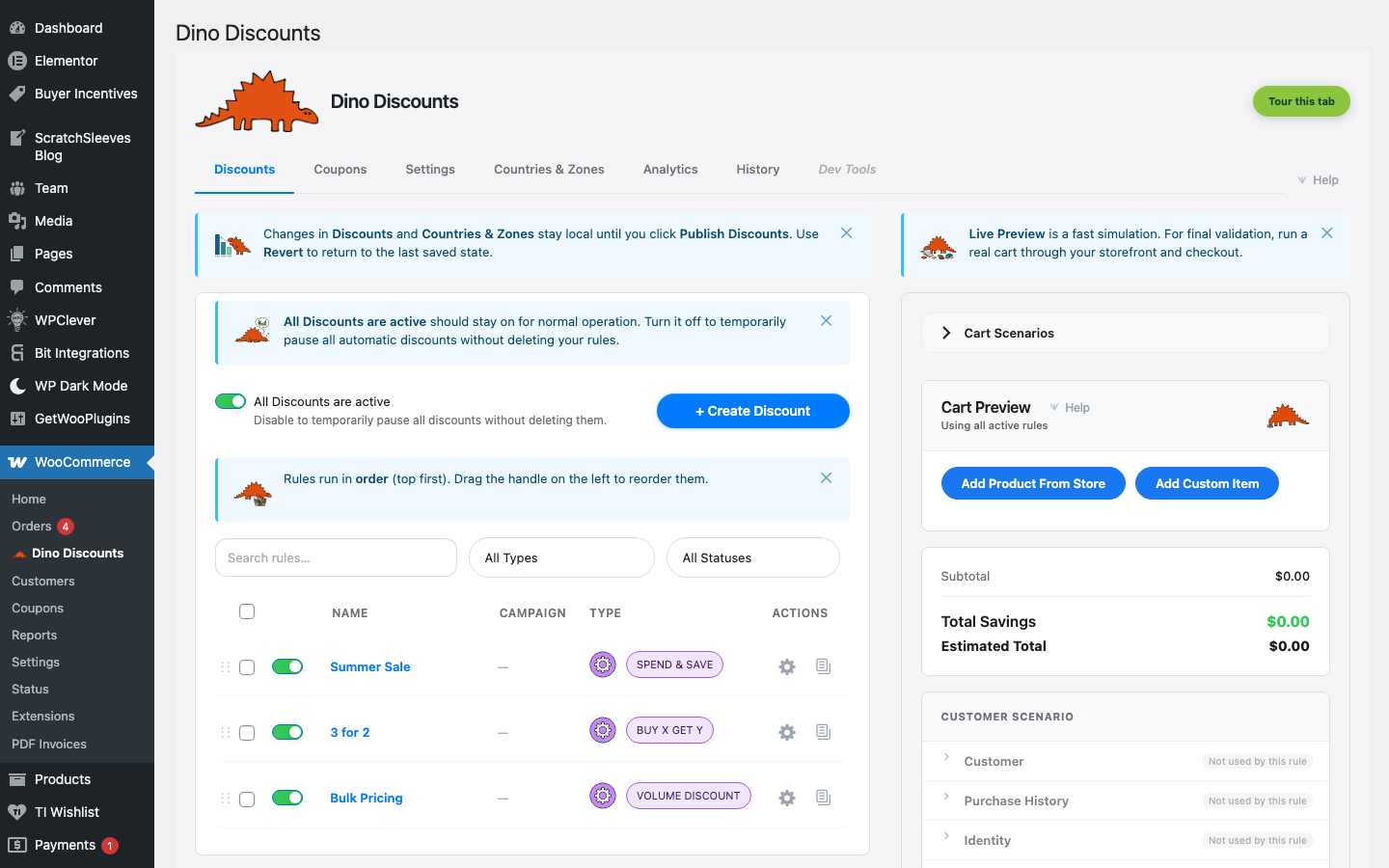
Section titled “Open the recipe gallery”Navigate to WooCommerce → Dino Discounts and click the + Create Discount button in the top toolbar.
If this is your first visit, you'll see an empty state with a "Create your first discount" button instead — it does the same thing.
Pick the "Spend & save (tiered)" recipe
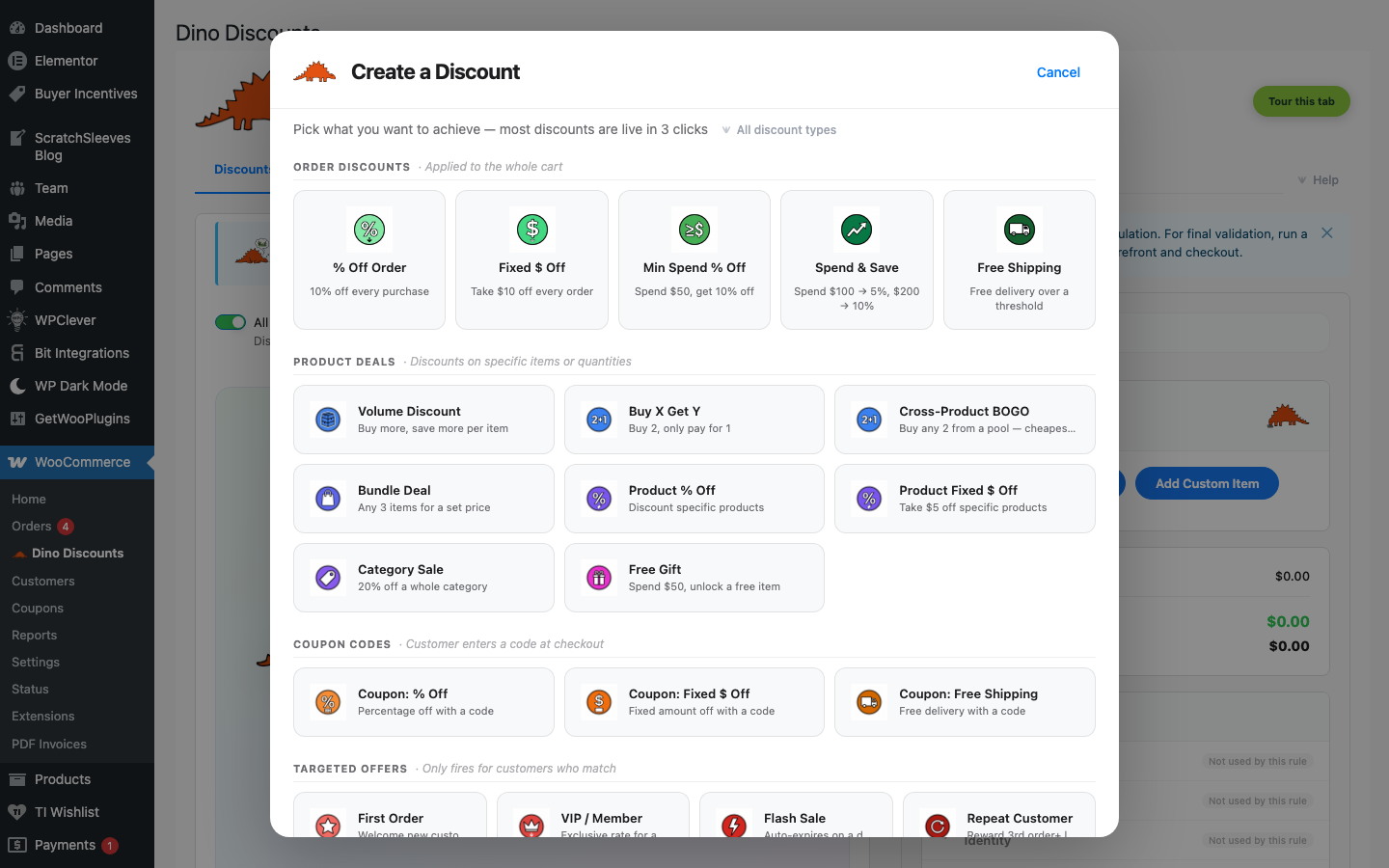
Section titled “Pick the "Spend & save (tiered)" recipe”The recipe gallery groups templates under Common mechanisms with six small sub-headings — pick whichever matches what you want to build:
- % / £ discounts
- Spend & save / tiers
- Customer segments
- Coupon-triggered
- BOGO / bundle
- Time / day
Underneath, a Seasonal · pre-filled row offers worked-example templates (Black Friday, Mother's Day, etc.), and a dashed Build any discount tile in the top-right opens a blank wizard.
For this walkthrough, under Spend & save / tiers, select "Spend & save (tiered)".
Read the Plain English summary, then set the discount amount
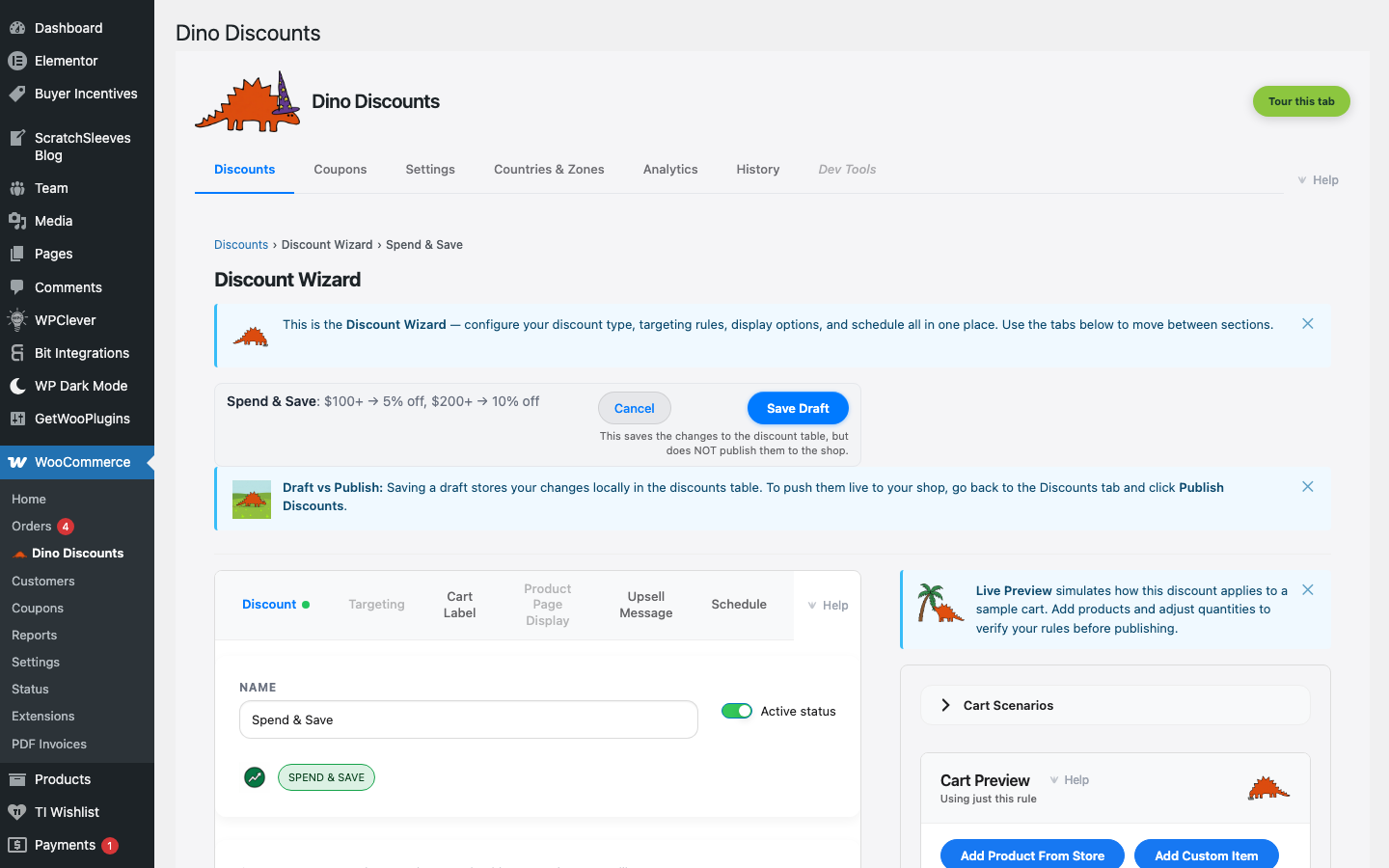
Section titled “Read the Plain English summary, then set the discount amount”The wizard opens with your chosen recipe pre-filled. The green Plain English summary box at the top tells you, in one sentence, what your rule does so far — for a fresh Spend & save it reads something like "When the cart subtotal reaches £?, apply ?% off the cart." As you fill in fields, the sentence updates live so you can sanity-check the rule without leaving the page.
Scroll to the Rewards section and set:
| Field | What to enter |
|-------|--------------|
| Minimum spend | 50 |
| Discount type | Percentage |
| Discount amount | 10 |
Want multiple tiers? Click Add Tier and add more — for example, spend £100 → 15% off, spend £200 → 20% off.
Preview in the Cart Preview
Section titled “Preview in the Cart Preview”The Cart Preview sits in the right rail of the wizard and shows how your discount applies to a simulated cart — using the real discount engine, not an approximation. Add a product, adjust the quantity, and the discount line updates immediately. Push the subtotal across each tier boundary to confirm the right tier fires at each step.
If the discount doesn't appear, the Cart Preview also shows why — for example, "Minimum spend not met."
Save as draft
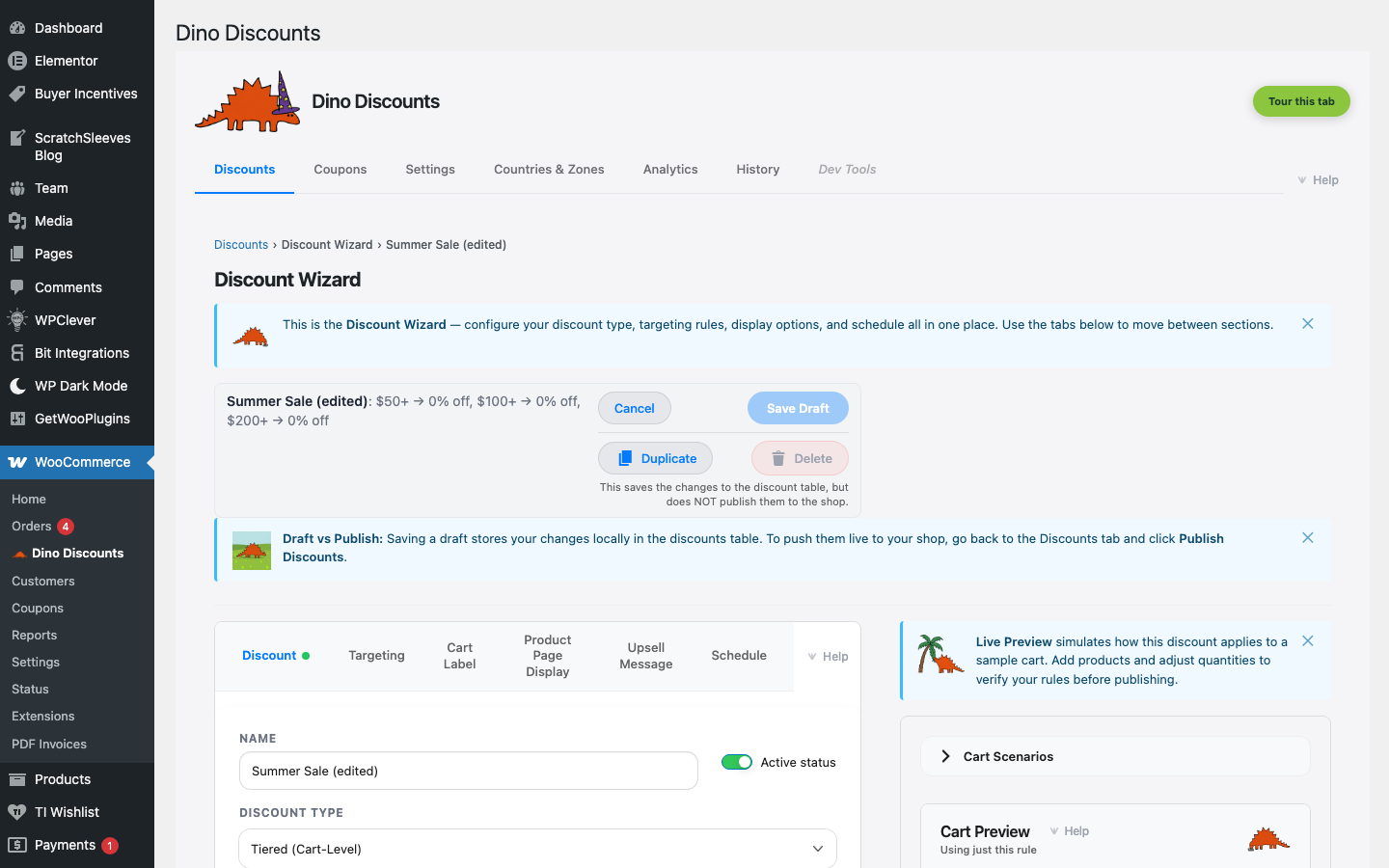
Section titled “Save as draft”Click Save Draft in the top-right corner. Your discount is saved but not live on your store yet.
Publish your discount
Section titled “Publish your discount”When you're happy:
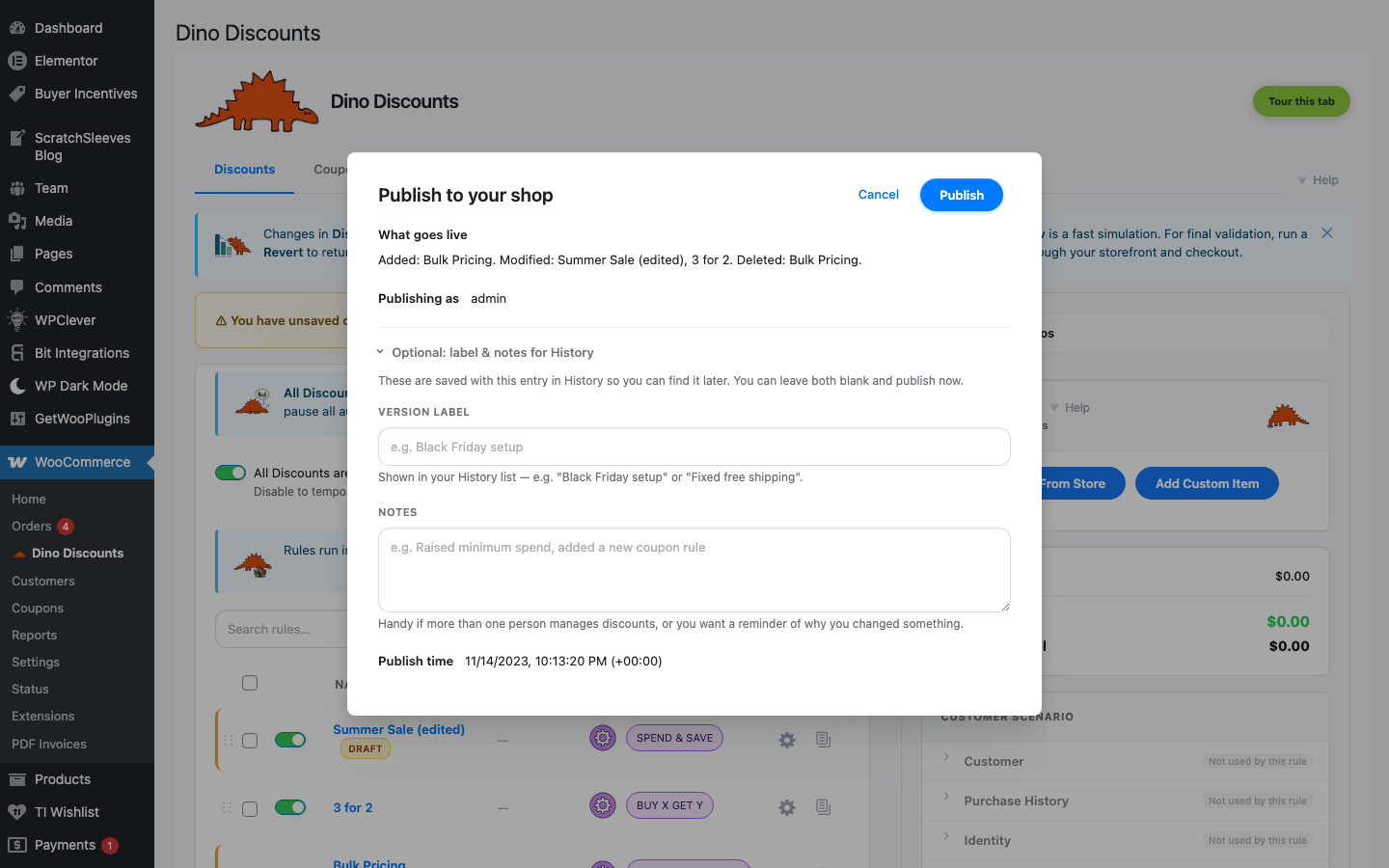
- Click the Discounts tab at the top of the admin to go back to the list
- You'll see an unsaved changes banner at the top
- Click Publish to open the publish modal
- Review the "What goes live" summary listing every pending change
- Click Publish Discounts
Your discount is now live. Any customer whose cart reaches £50 will automatically see 10% off.
What's next?
Section titled “What's next?”You've got the basics down. Here's where to go next:
- Creating a Discount Coupon — Create a coupon using the Discount Wizard
- Targeting — Restrict discounts to specific products, categories, or customer roles
- Cart labels — Customise what customers see in their cart
- Upsell messages — Show "Add £15 more for 15% off!" nudges
- Discount stacking — Control what happens when multiple discounts apply