
Creating Coupons
A coupon groups one or more codes under shared settings — discount type, usage limits, and expiry. You create the coupon once, then generate as many codes as you need.
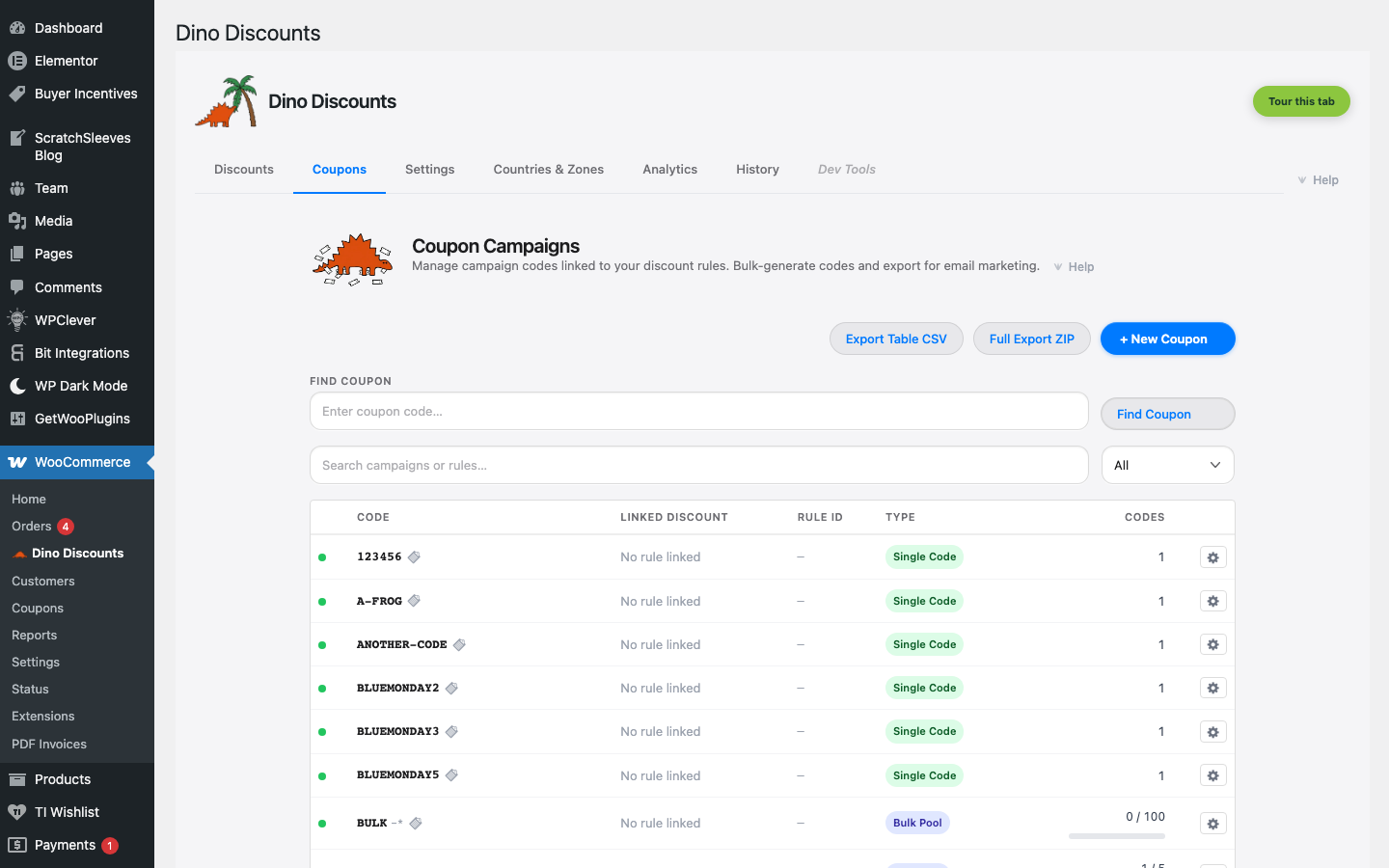
Create a coupon
Section titled “Create a coupon”You can create a new coupon from several places in the admin:
- Click + New Coupon in the Coupons tab toolbar
- Select Create New Coupon from the coupon dropdown inside a discount rule
- Select Create New Coupon from any Dino Coupon Applied targeting field
All three open the same New Coupon modal. Fill in the details:
| Field | Description |
|-------|-------------|
| Coupon Code | The code customers enter at checkout (e.g. SUMMER20). Auto-uppercased. |
| Coupon Type | Standard (one code, unlimited or limited uses), Bulk Pool (generate many unique codes), or URL Token (auto-apply via link) |
| Linked Discount | Optionally link the coupon to an existing discount rule |
Click Create Coupon to save, or Cancel to discard.
Coupon types
Section titled “Coupon types”| Type | Use case |
|------|----------|
| Standard | One code shared publicly — e.g. WELCOME15 on your homepage |
| Bulk Pool | Generate hundreds of unique codes for email blasts or partner distribution |
| URL Token | Auto-apply discount via a shareable link — see URL Auto-Apply |
Add coupon codes
Section titled “Add coupon codes”Once a coupon exists, you can add codes:
Individual codes
Section titled “Individual codes”For Standard coupons, the coupon code itself is the redemption code. Edit the coupon to change it.
Bulk generation
Section titled “Bulk generation”For Bulk Pool coupons, open the row's trailing ⋯ menu (the More actions overflow menu at the end of the coupon row) and select Edit coupon. In the Edit Coupon modal's generation section, click Generate (or Generate More Codes if the pool already has codes) and specify the quantity — codes are generated with the coupon code as a prefix (e.g. SUMMER20-A8K2X9).
Get bulk codes straight from the row
Section titled “Get bulk codes straight from the row”You no longer have to open the editor to reach a bulk pool's generated codes. On any active Bulk Pool row:
- The Used meter (
used / total) is a link — click it to jump straight into the codes view. - The row's trailing ⋯ menu leads with a codes group:
- View codes — opens the coupon's codes view inline, scrolled to and with the newest batch expanded.
- Copy all codes — copies the entire pool to your clipboard as plain text.
- Export codes (CSV) — downloads the whole pool as a CSV without opening the editor.
These three items appear only on Bulk Pool coupons (single-code and URL-token coupons have no generated pool) and only while the coupon is active.
Edit a coupon
Section titled “Edit a coupon”Open the row's trailing ⋯ menu and select Edit coupon to open the Edit Coupon modal. Changes are only saved when you click OK — clicking Cancel discards any changes.
In the Edit Coupon modal you can:
- Copy the coupon code to clipboard
- Change the linked discount rule
- View pool stats and generation history (for Bulk Pool coupons)
- Archive the coupon
Managing codes
Section titled “Managing codes”Export
Section titled “Export”Use Export Table CSV to download all coupons in the current view, or Full Export ZIP for every code across all coupons. This is useful for sending code lists to email platforms or distribution partners.
Find a code
Section titled “Find a code”Type a code or prefix into the Find Coupon search bar and click Find Coupon to open the search results modal. The modal shows up to 50 matching codes at a time — click any row to expand its full details (used at, used by, generated date, order number). Click Load more to fetch additional pages of results.
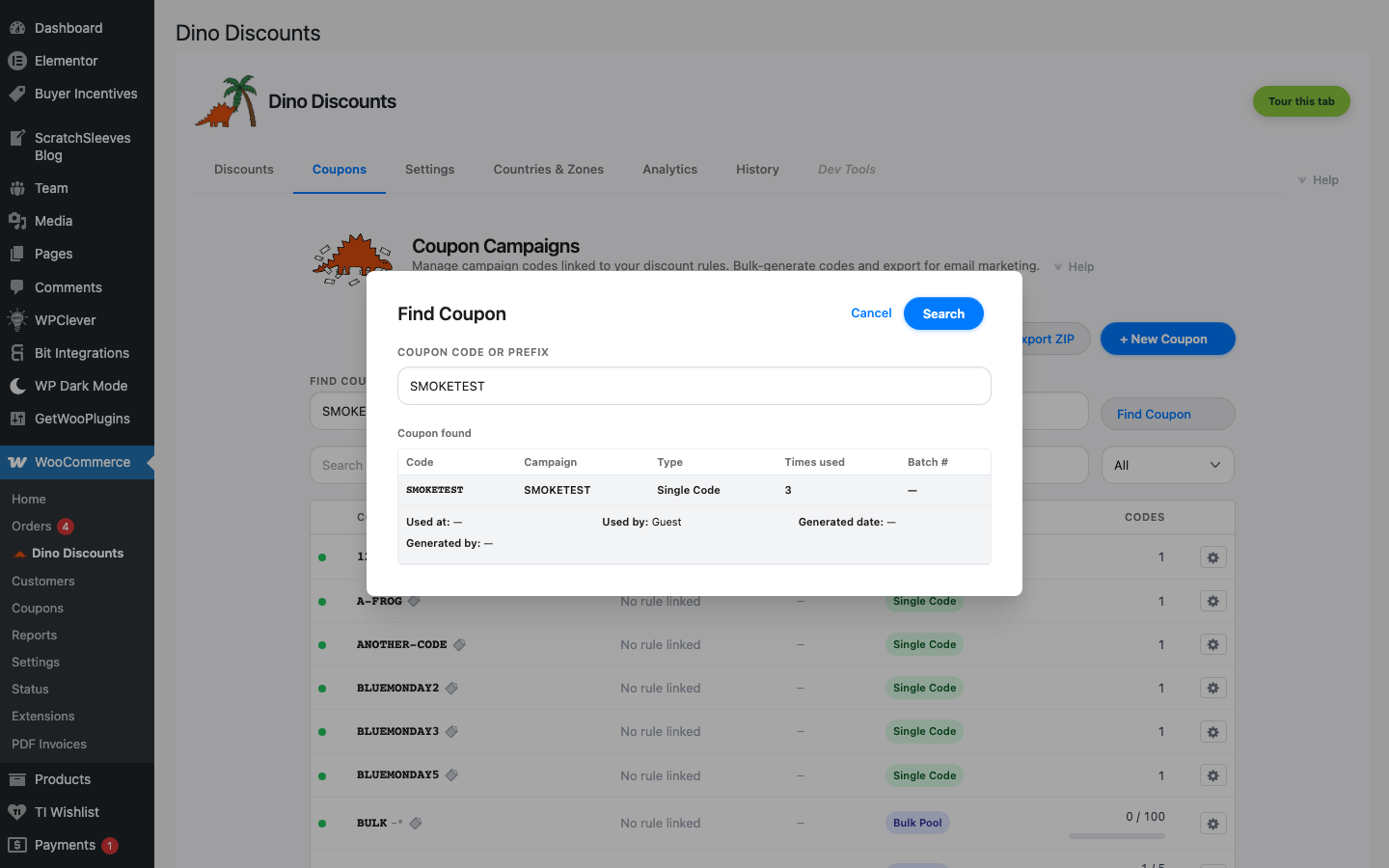
This is useful when a customer contacts support about a code and you need to quickly check its status.
Generation history
Section titled “Generation history”For bulk-pool coupons, every code generation run is tracked as a numbered batch. The batch number is a per-coupon sequence (1, 2, 3...) so Batch #1 is always the first generation run for that coupon.
Open a coupon to see its Generation History table:
| Column | What it shows | |--------|-------------| | Batch | Per-coupon batch number (1, 2, 3...) | | When | Date and time of generation | | Who | Which admin user generated the codes | | Codes | How many codes were created in this batch | | Exported | Whether this batch has been downloaded | | Download | Download a CSV of just the codes from this batch | | Download with info | Download a CSV with additional metadata (code, batch number, usage count) |
After downloading, the batch is marked as exported so you can track which batches have been distributed.
Bulk actions at the bottom let you Download All or Download All with Info across every batch in the coupon.
Usage tracking
Section titled “Usage tracking”Each code tracks:
- Total redemptions — How many times it's been used
- Remaining uses — Based on the coupon's usage limit
- Last used — When the most recent redemption occurred
The Coupons table has a Used column showing each coupon's total redemptions at a glance — for bulk-pool coupons this is the sum across every code in the pool, and for single-code and URL-token coupons it's that code's own redemption count. A redemption is counted once an order using the code reaches a paid status (processing, completed, or on-hold) — not when the code is merely applied to a cart.
This data appears in the Coupons tab and can be exported for reporting.