
Draft & Publish Workflow
Dino Discounts uses a draft/publish workflow to keep your live store safe while you make changes. This is one of the most important concepts to understand.
How it works
Section titled “How it works”| State | What it means | Customer impact | |-------|--------------|-----------------| | Published | The live state — what your store is running right now | Customers see these discounts | | Draft | Your working changes — saved but not live | No customer impact |
When you create or edit a discount, it becomes a draft. You can make as many changes as you like across multiple discounts. Nothing changes for your customers until you click Publish.
The publish flow
Section titled “The publish flow”- Make your changes (create discounts, edit tiers, change targeting, etc.)
- An unsaved changes banner appears at the top of the Discounts tab showing how many changes are pending
- Click Publish to open the publish modal
- Review the "What goes live" summary — this shows exactly what will change
- Optionally add a snapshot name and comment for your records
- Click Publish Discounts
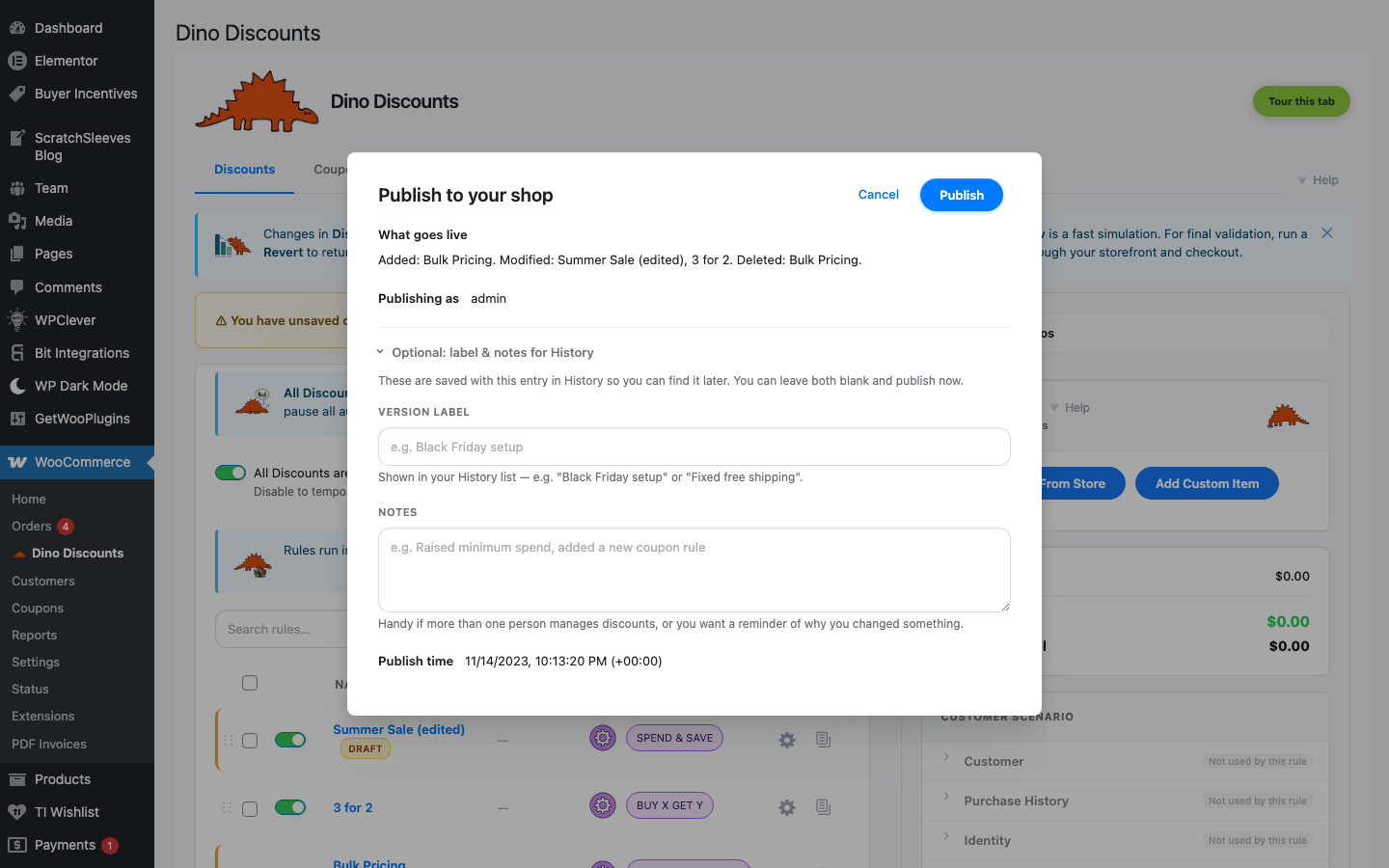
All pending changes go live at once. A snapshot of the previous state is saved automatically so you can roll back if needed.
Why this matters
Section titled “Why this matters”Safe experimentation
Section titled “Safe experimentation”You can set up a complex multi-discount promotion, preview each discount in the cart simulator, and only push everything live when you're confident it's right.
Batch changes
Section titled “Batch changes”If you're updating several discounts (e.g., changing all your tiers for a seasonal sale), you don't have to worry about customers seeing a half-finished state. Everything publishes together.
Audit trail
Section titled “Audit trail”Each publish creates a snapshot in the History tab. You can see what changed, when, and who did it — and roll back to any previous state.
Reverting changes
Section titled “Reverting changes”Changed your mind before publishing? Click Revert in the unsaved changes banner to discard all drafts and return to the current published state.
After publishing, you can restore a previous state from the History tab.